
Linked Spaces: the setting between all and nothing
By Igor C. · September 4, 2026 · 5 min read
There is one checkbox in macOS that decides how Spaces behave when you have more than one display. It lives in System Settings under Desktop & Dock, and it reads "Displays have separate Spaces". On or off. Whichever you pick, you live with it on every display, for every Space, all day.
I have had it on for years, and I have been annoyed by it for years. Off is worse. This release adds the option I actually wanted.
The two modes you get
With the setting off, one Space stretches across every display. Switch Spaces and all of your screens move at once. That sounds right for work that spans two displays, until you notice what else moves: the display where you keep chat, music and a calendar goes with it. And when any app goes full screen, the other displays go blank.
With the setting on, each display has its own stack of Spaces and switches on its own. Now the chat display can stay put. But two Spaces that belong together, one on each display, have nothing tying them to each other. You swipe the main display over to another Space, and the second display is still showing the last one. Every switch is two switches, and the second one is the one you forget.
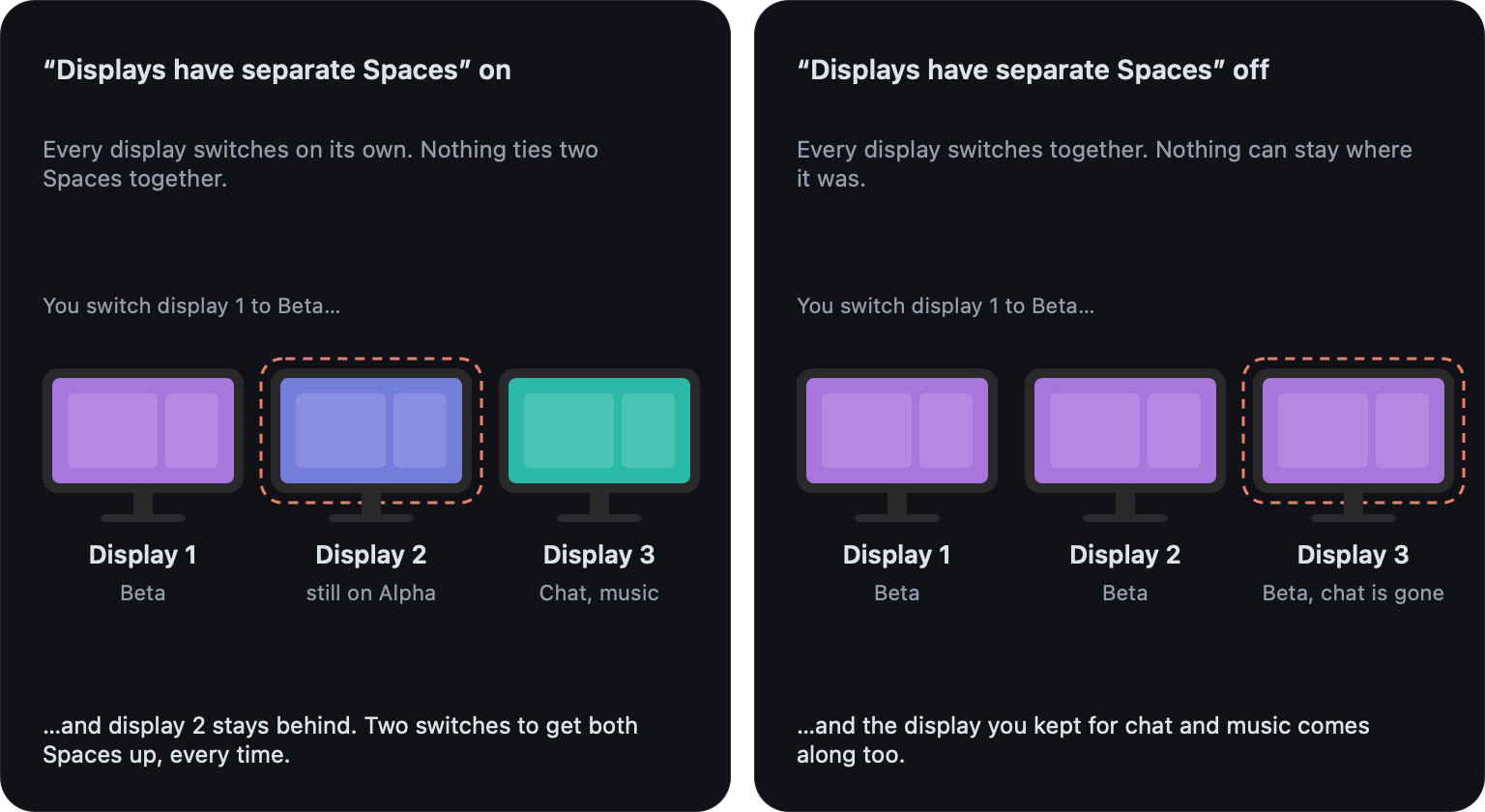
Both modes are consistent. Neither one matches how work is laid out on a desk with three screens.
Two Spaces that belong together
Here is the setup that made me build this. On the main display I have a Space with an editor and a terminal. On the second display I have a Space with the app running in a browser, devtools open next to it, and a Figma file with the design. Those two Spaces are one piece of work, and I want them to move as one thing. The third display, the laptop screen, has a Space with Slack and music, and I want it to never move.
Many apps assume this shape. Xcode with the Simulator on a second screen. Logic with the mixer on its own display. DaVinci Resolve has a dual-screen layout built in. Any browser-based work where the page under test lives on one screen and the code on another. These are windows that only make sense together, spread across displays on purpose.
What Linked Spaces do
Keep "Displays have separate Spaces" on. In Scopo, pick one Space per display and link them into a group. From then on, when one Space in the group comes up on its display, the other displays in the group switch to their Space. Coming up means either of two things: you switch to it, or you click a window that lives on it.
A link does not have to cover every display. Two of three is fine, and the third display is left alone. Spaces outside a link keep behaving the way they always have.
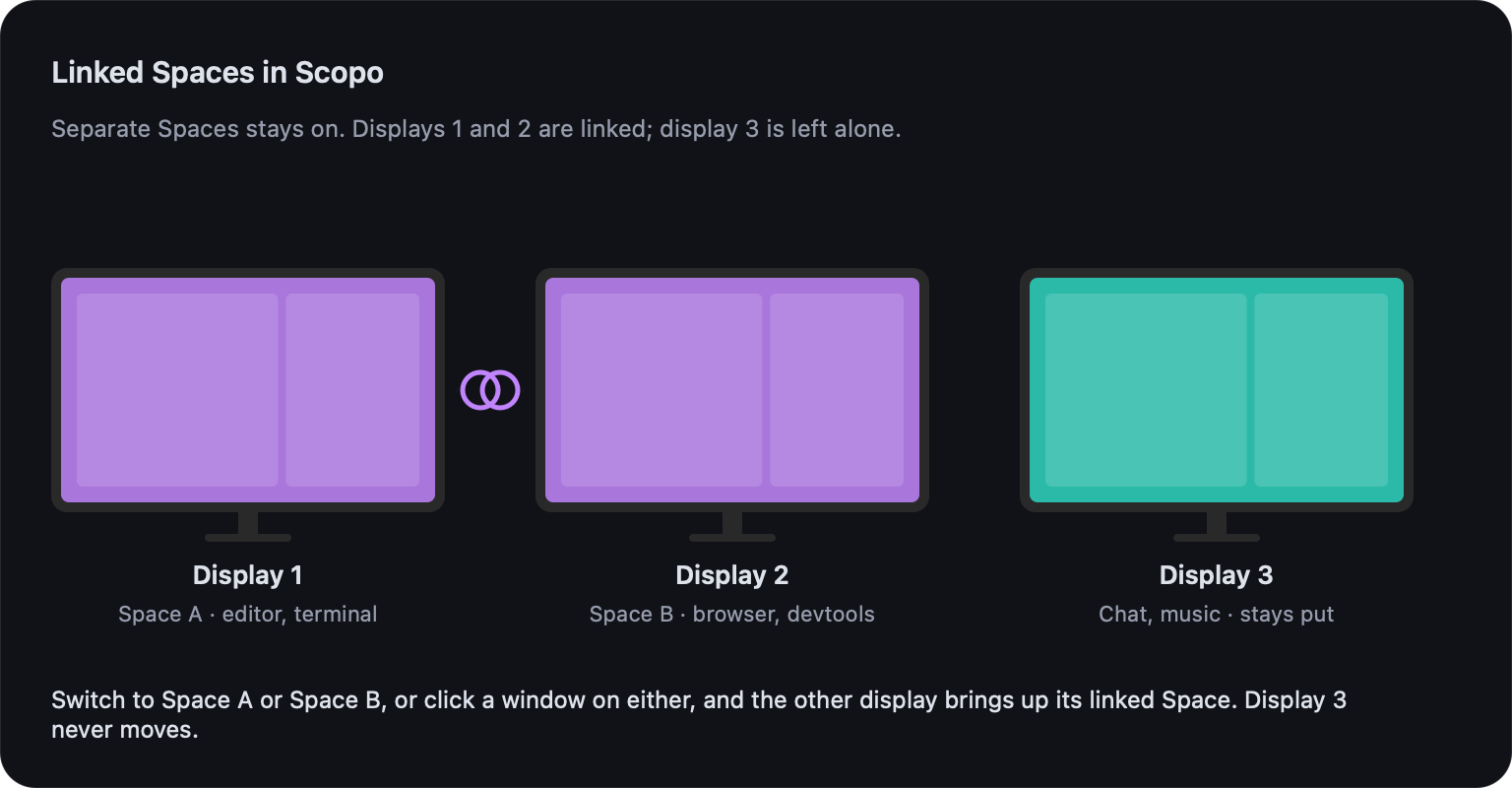
A few details that matter in practice:
- macOS still sees separate Spaces. A linked Space is a normal Space with a normal set of windows. Unlink it and nothing about your setup has changed.
- Unplug a display and the link waits. Scopo keeps the group. The Space on the missing display is skipped while it is gone, and it rejoins when you plug the display back in.
- The switcher shows a link as one card. Hold Cmd+Tab and the Space bar shows the linked Spaces as a single stop, with a badge for each display it covers. The window list shows the windows from every linked Space, the current display's first, each with its display number. Return takes you to the Space on the display that has your focus.
- Switches happen at once. When Scopo starts the switch, every display in the group slides together, not one after the other.
Setting one up
Hold Cmd+Tab, type Link Spaces, and press Return. The panel walks through your displays in order. For each one, pick the Space you want in the link, or choose "Skip this display" to leave it out. The display's current Space is pre-selected, so if you are already looking at the right Space on every screen, it is mostly pressing Return a few times. The last step shows the summary. Confirm, and the link is live.
To review or remove links, type List Space Links. Each group is shown by the names of its Spaces, and Return on one offers to unlink it. You can also open the action pane on any Space row in the switcher, where you will find "Link Spaces…" and, for a linked Space, "Unlink Space".
Links need two or more displays and the "Displays have separate Spaces" setting on. If either is missing, the command explains why instead of opening the panel.
Why this belongs in Scopo
Scopo's whole idea is that you split your work across Spaces, and that the switcher should only show you the Space you are in. Some of that work needs two displays, so it ends up as two Spaces. Until now the displays did not know those two belonged together. Now they do, and the third display can keep doing its own thing.
If you run a setup like this, I would like to hear how it goes, and which Spaces you end up linking. The switcher already knows which windows belong together. This release lets the displays act on it.